dir.by  
Поиск >>

Компьютер, программы
→
Angular
 Создаем новое web приложение с Angular 9 в Visual Studio Code. Используем: Node.js + Angular (пишем нашу компоненту в ts файле) + Typescript (конвертация файлов ts в js) 
посмотрели 6168 раз
обновлено: 7 Augusta 2021
my_example_angular_9.zip ...
размер: 4 kb
Структура файлов:
На заметку! если назвать проект с восклицательными знаками например так: D:/my_example_angular_9!!! то при выполнении будет ошибка
D:/my_example_angular_9
        angular.json                  файл настройки Angular
        package.json                  файл настройки Node.js (содержит названия пакетов)
        tsconfig.json                  файл настройки TypeScript
        .vscode
                launch.json            файл настройки для Visual Studio Code (путь к запускаемому файлу)
        src
                index.html
                main.ts
                polyfills.ts
                app
                        app.component.html
                        app.component.scss
                        app.component.ts
                        app.module.ts
Как запустить пример локально у себя на компьютере?
Шаг 1.
Открываем
Visual Studio Code
и выбираем папку
В Visual Studio Code нажимаем на меню File → Open Folder
и выбираем папку D:/my_example_angular9
Шаг 2.
Устанавливаем библиотеки
В Visual Studio Code нажимаем на меню Terminal → New Terminal
Выполним:
npm install


Смотрите картинку:


Объяснение:
В этом zip архиве нет node_modules пакетов.
Название и версии пакетов написаны в файле package.json.
Поэтому при выполнении в командной строке npm install пакеты с названием и версии из package.json скачаются из интернета и установятся в папку node_modules
Шаг 3.
Компилируем проект и запускаем под локальным web server
Выполним:
npm run start


Смотрите картинку:


Объяснение:
Команда npm run start запускает скрипт start.
Скрипт start определен в файле package.json.
Файл D:/my_example_angular_9/package.json:
{
...
    "scripts": {
        "start": "ng serve"
    }
...
}

Скрипт start запустит angular команду ng serve:
ng serve это локальный web server, потому что в браузере мы видим http://localhost:4200/
ng serve постоянно следит за изменениями в файлах и обновляет страницу в браузере.
Шаг 4.
Открываем страницу
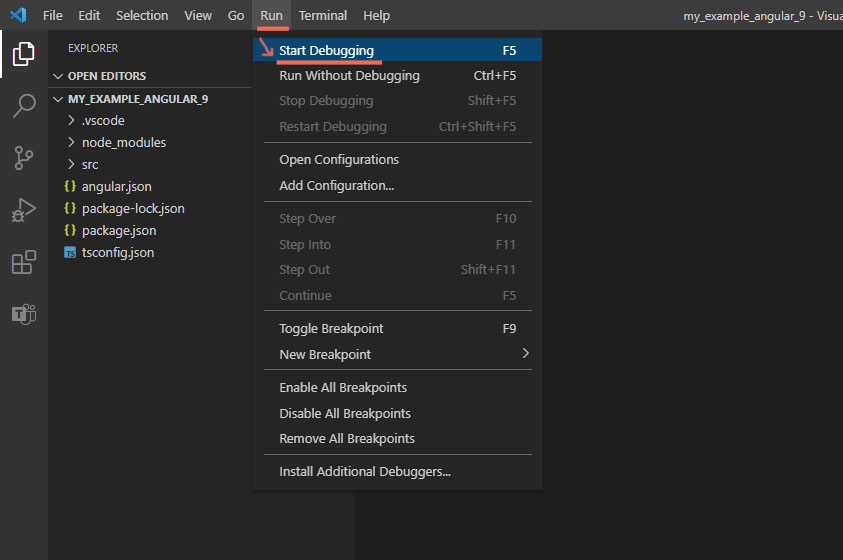
В Visual Studio Code нажимаем на меню Run → Start Debugging

Смотрите картинку:

Автоматически в браузере Google Chrome откроется новая страница с таким адресом: http://localhost:4200/
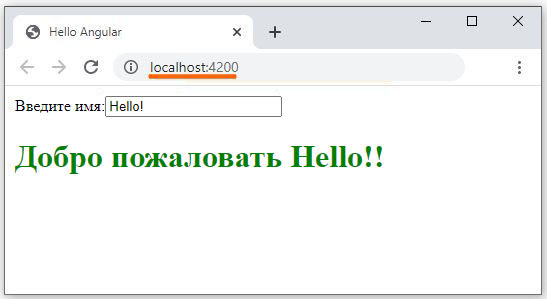


Объяснение:
Запускается Google Chrome с адресом http://localhost:4200/
потому что файл настройки .vscode/launch.json
{
"version": "0.2.0",
"configurations": [
     {
          "type": "chrome",
          "request": "launch",
          "name": "Launch Chrome",
          "url": "http://localhost:4200/"
     }
]}

создержит
"url": "${workspaceFolder}/index.html"
На заметку!
Если поменяли файл ts или html в папке src то в браузере Google Chrome страница сама обновится.
 
← Previous topic
What happens when I start an Angular 8 application? Run main.ts file. Creating a module.
 
Next topic →
Creating a new web application with Angular 12 in Visual Studio Code. Use: Node.js + Angular (write our component in the ts file) + Typescript (convert ts files to js)
 
Your feedback ... Comments ...
   
Your Name
Your comment (www links can only be added by a logged-in user)

Новость "Черная пятница" Dreame в Беларуси – две недели скидок до 3400 рублей
 
• What is Angular 8?
New Angular 8 application
Option 1. Creating a new Angular application from the console with the angular/cli command (50 files)
• Creating a new web application with Angular 8. Using the command line: npx -p @angular/cli@8.1.0 ng new
Option 2 (the best for me). Creating a new Angular application yourself (8 files)
• Create a new web application with Angular 8 in Visual Studio Code. We use: Node.js + Angular (write our component in ts file) + Typescript (convert files ts to js)
• What happens when I start an Angular 8 application? Run main.ts file. Creating a module.
Angular 9
• Creating a new web application with Angular 9 in Visual Studio Code. Use: Node.js + Angular (write our component in the ts file) + Typescript (convert ts files to js)
Angular 12
• Creating a new web application with Angular 12 in Visual Studio Code. Use: Node.js + Angular (write our component in the ts file) + Typescript (convert ts files to js)
• Adding routing (router) to the web application with Angular 12
Angular Description
• Modules in Angular
• Components in Angular
• Binding data in Angular
Errors
• Error "npm : The term "npm" is not recognized as the name of a cmdlet, function, script file, or operable program. Check the spell included, verify that the path is correct and try again. " | nodejs npm angular
• Error "npm ERR! While resolving: @angular/flex-layout@12.0.0-beta.35 | Could not resolve dependency: | Conflicting peer dependency: @angular/cdk@12.2.13" | nodejs npm angular
• ng serve Error "ng : The term "ng" is not recognized as the name of a cmdlet, function, script file, or operable program. Check the spellin the path is correct and try again. " | nodejs npm angular
• ng serve Error "File ng.ps1 cannot be loaded. The file ng.ps1 is the current system. " | nodejs npm angular
• Error "Module build failed (from ./node_modules/@ngtools/webpack/src/ivy/index.js)" | nodejs npm angular
Docker for Angular
• Using Docker in a project with Angular (for Windows)
Angular Flex-Layout
• Angular Flex-Layout
WWW Sites to Learn Angular
• Sites to learn Angular

  Ваши вопросы присылайте по почте: info@dir.by